What File Type Do You Need for Custom T-Shirt Printing?
- Printing Tips & Artwork Setup
You’ve got a killer design. You’re ready to place your order. But then the printer asks: “Can you send us a vector file?” and suddenly, you’re Googling what that even means.
You’re not alone. One of the most common delays in custom t-shirt printing in Dallas-Fort Worth happens before a single screen is burned or a single drop of DTG ink is laid down it’s the artwork file problem.
In this guide, we’ll break down every file type you might encounter, which ones work best for which printing methods, and how to set up your files so your order ships fast and looks exactly how you imagined.
Why File Type Matters More Than You Think
Think of your artwork file like a recipe. A printer takes your file and translates it into ink on fabric. If the recipe is vague, blurry, or incomplete, the final product will be too.
- A low-resolution JPEG stretched to chest-print size will look pixelated.
- A file without separated colors can cause problems in screen printing.
- A PDF from Canva may look sharp on screen but contain embedded low-res images.
Getting the file right the first time saves you back-and-forth emails, rush charges, and reprints. Here’s exactly what you need to know.
The Two Major File Categories: Vector vs. Raster
Before diving into individual formats, it’s critical to understand the two families of digital artwork:
Vector Files (Preferred for Most Print Methods)
Vector files are built on mathematical paths, not pixels. This means they can be scaled to any size from a 2-inch chest logo to a 48-inch banner without losing any sharpness.
Best vector formats for t-shirt printing:
- .AI (Adobe Illustrator) — The gold standard. Most professional print shops, including those across the Dallas-Fort Worth metro, prefer AI files.
- .EPS (Encapsulated PostScript) — Universally accepted and compatible with most professional design and print software.
- .SVG (Scalable Vector Graphics) — Great for digital-first designs; accepted by many modern DTG and vinyl cutting workflows.
- .PDF (Portable Document Format) — Acceptable only when it contains true vector artwork (not an embedded raster image saved as PDF).
Raster Files (Use with Caution)
Raster files are made of pixels. At small sizes they look fine but zoom in or enlarge them, and you see the dreaded pixelation.
Common raster formats:
- .PNG — Acceptable for DTG printing if at least 300 DPI at print size. Supports transparent backgrounds — a major plus.
- .JPEG / .JPG — Generally avoided. Lossy compression degrades quality. Has no transparency support.
- .TIFF — High-quality raster, sometimes accepted for DTG and sublimation but rarely required.
- .PSD (Photoshop) — Can work if layered correctly and exported at proper resolution.
File Type by Printing Method
Different custom t-shirt printing methods have different requirements. Here’s a quick reference:
| Print Method | Best File Type | Minimum Resolution |
|---|---|---|
| Screen Printing | .AI, .EPS, .PDF (vector) | Vector (no DPI limit) |
| DTG (Direct-to-Garment) | .PNG, .PSD, .TIFF | 300 DPI at print size |
| Heat Transfer / Vinyl | .AI, .SVG, .EPS | Vector preferred |
| Sublimation | .PNG, .TIFF | 300 DPI at print size |
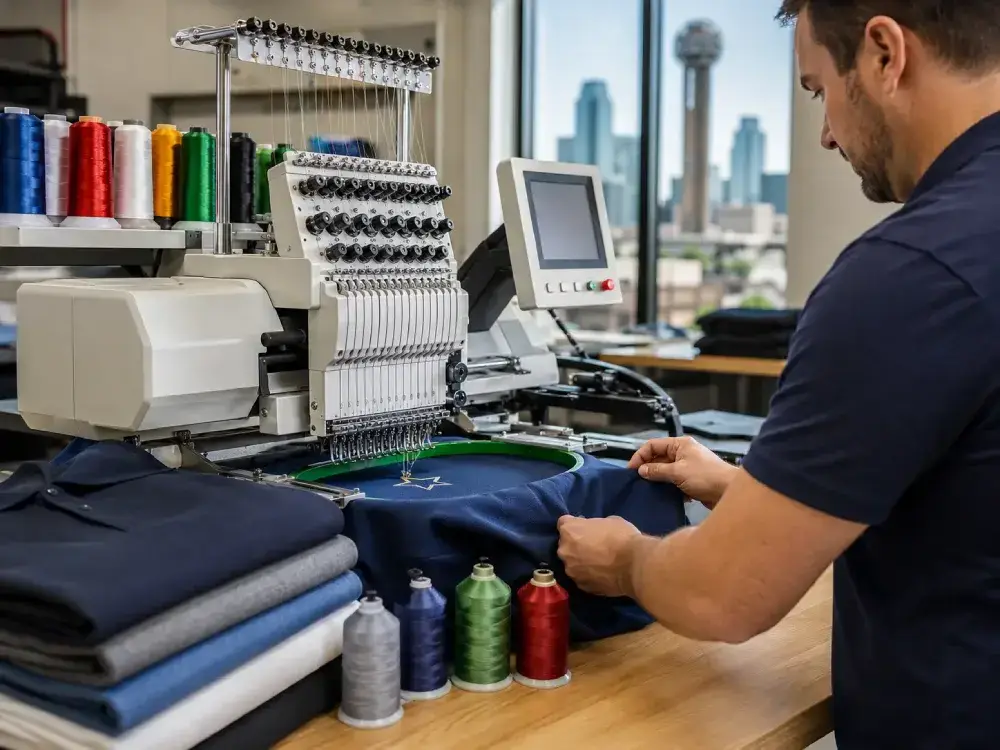
| Embroidery | .DST, .EMB (digitized file) | N/A special format |
Dallas-Fort Worth tip: Most local and online custom shirt printers in the DFW area will convert your file for free if you provide a clean, high-resolution source. Always ask before assuming your file needs a full redesign.
The Most Common File Mistakes (and How to Fix Them)
Mistake 1: Sending a Logo Screenshot
A screenshot of your logo from your website is typically 72 DPI screen resolution, not print resolution. This will always look blurry on a shirt.
Fix: Request the original vector file from your designer, or use a service like Adobe Express or Vector Magic to convert raster logos to vector.
Mistake 2: White Backgrounds on PNG Files
A PNG file with a white background will print that white box around your design which looks unprofessional on any colored shirt.
Fix: Always export PNGs with a transparent background. In Photoshop: File → Export → Export As → PNG, and uncheck “Background Color.”
Mistake 3: Fonts Not Outlined
If your design includes custom text, and you send the file without outlining the fonts, the printer’s computer may substitute a different font if they don’t have yours installed.
Fix: In Adobe Illustrator: Select All → Type → Create Outlines. This converts text to shapes that can’t shift.
Mistake 4: Using RGB Color Mode for Screen Printing
Screen printing uses spot colors (Pantone/PMS). An RGB file means your printer has to guess at the right ink colors.
Fix: Work in CMYK mode for full-color prints, and specify Pantone colors for screen printing jobs. Learn more at the Pantone Color Guide for Apparel.
What About Files from Canva or Online Tools?
Many customers in Dallas-Fort Worth create designs using tools like Canva, Adobe Express, or Kittl. Here’s the honest breakdown:
- Canva Free: Exports PNG and JPEG only — usable for DTG, not ideal for screen printing.
- Canva Pro: Can export SVG and PDF — much better. SVG works well if the design is clean.
- Kittl / Adobe Express: Often support SVG/PDF export. Check whether fonts are embedded or outlined.
- Microsoft Word / PowerPoint: Please don’t. These are not design tools for print production.
Quick File Submission Checklist
Before sending your artwork to any DFW custom t-shirt printer, run through this list:
- File is vector (.AI, .EPS, .SVG) OR high-res raster (300 DPI+)
- Background is transparent (for PNG files)
- All fonts are outlined or embedded
- Color mode is CMYK (full color) or Pantone (screen print)
- File dimensions match your desired print size
- You’ve included a low-res preview (JPEG) for color reference
Still Not Sure? We Can Help
If you’re based in Dallas-Fort Worth and don’t know whether your file will work, send it to us for a free artwork review. Our in-house art department checks every submission and will flag any issues before your order goes to production no surprise reprints.
Frequently Asked Questions
What is the best file type for custom t-shirt printing?
Vector files specifically .AI (Adobe Illustrator) or .EPS are the best for most print methods because they scale without losing quality. For DTG printing, a high-resolution .PNG (300 DPI at print size) with a transparent background is also excellent.
Can I use a PNG file for custom shirt printing?
Yes, but only if it’s at least 300 DPI at your actual print size and has a transparent background. Low-resolution PNGs from websites or screenshots will print blurry.
Do I need a vector file for screen printing?
Yes. Screen printing requires separated spot colors, which is only reliably achievable with vector artwork. Most screen printers in Dallas-Fort Worth will require .AI, .EPS, or a clean vector PDF.
What if I only have a JPEG of my logo?
A JPEG can sometimes be auto-traced into a vector, but quality varies. For a professional result, have a graphic designer recreate it in Illustrator, or ask if your printer offers artwork services.
Custom Shirt Printing Design in Dallas-Fort Worth
Aaron Design is a Dallas-Fort Worth custom apparel printing company serving businesses, schools, events, and individuals across the DFW metroplex including Dallas, Fort Worth, Plano, Frisco, Arlington, Irving, and Denton.
Related Blogs